View : 248
18/08/2026 21:20pm
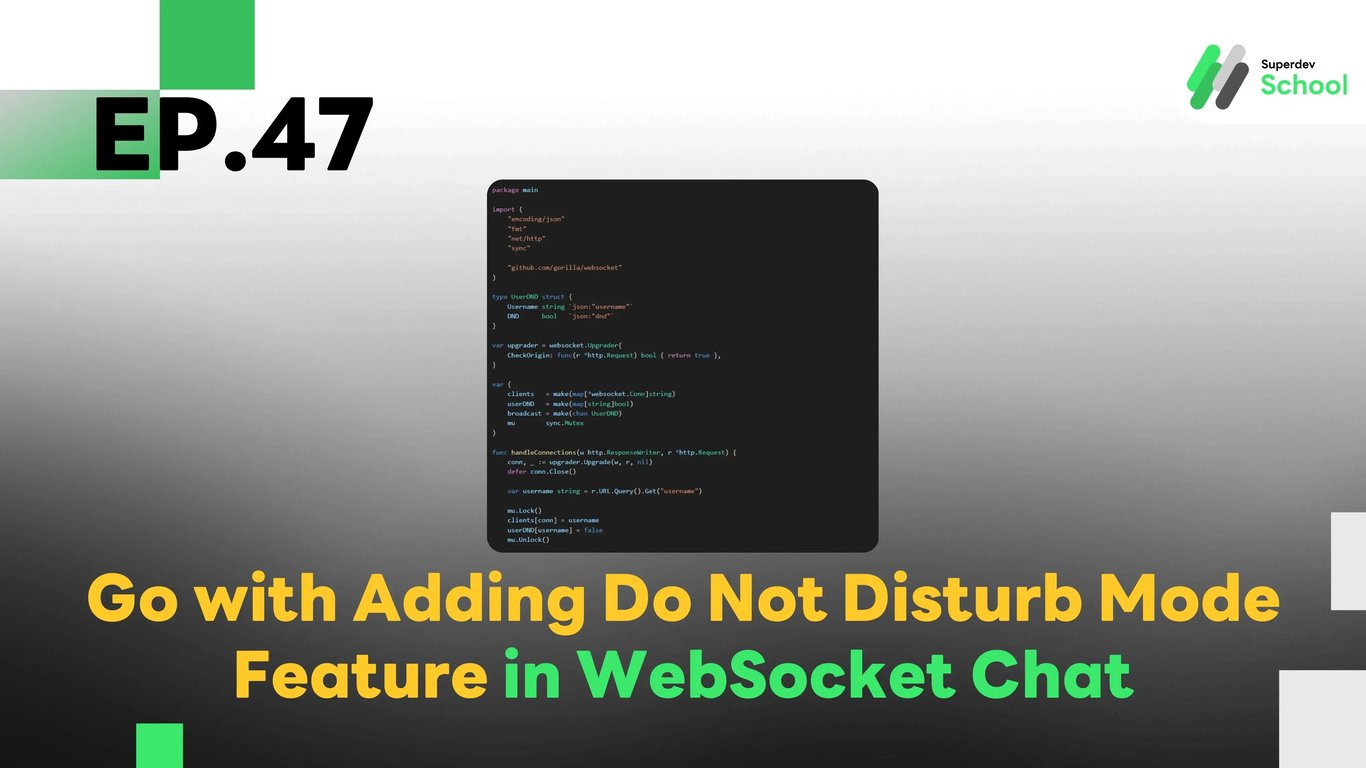
EP.47 Adding Do Not Disturb Mode Feature in WebSocket Chat
#Chat Notifications
#Chat UX
#DND Mode
#WebSocket API
#Real-Time Chat
#Golang
#Go
#WebSocket
#Do Not Disturb
Why Have Do Not Disturb Mode?
The Do Not Disturb (DND) mode allows users to silence notifications and prevent interruptions during specific times, such as:
- During meetings or important work sessions.
- While relaxing and not wanting to receive messages.
- Blocking notifications from certain individuals or all users.
Implementing DND Mode enhances the flexibility of the chat application and improves the overall user experience.
Structure of the Do Not Disturb Mode System in WebSocket Chat
- WebSocket Server: Manages the DND status of users and refrains from sending notifications when this mode is active.
- Frontend (Client-Side): Provides users with the option to toggle DND mode on or off.
- Database (Optional): Stores the DND status of users to persist even after refreshing the page.
Adding the Do Not Disturb Mode Feature to the WebSocket Server
1. Upgrade the WebSocket Server to Support DND Mode
File: websocket_server.go
package main

import (
    "encoding/json"
    "fmt"
    "net/http"
    "sync"

    "github.com/gorilla/websocket"
)

type UserDND struct {
    Username string `json:"username"`
    DND      bool   `json:"dnd"`
}

var upgrader = websocket.Upgrader{
    CheckOrigin: func(r *http.Request) bool { return true },
}

var (
    clients   = make(map[*websocket.Conn]string)
    userDND   = make(map[string]bool)
    broadcast = make(chan UserDND)
    mu        sync.Mutex
)

func handleConnections(w http.ResponseWriter, r *http.Request) {
    conn, _ := upgrader.Upgrade(w, r, nil)
    defer conn.Close()

    var username string = r.URL.Query().Get("username")

    mu.Lock()
    clients[conn] = username
    userDND[username] = false
    mu.Unlock()

    for {
        var dndStatus UserDND
        err := conn.ReadJSON(&dndStatus)
        if err != nil {
            mu.Lock()
            delete(clients, conn)
            delete(userDND, username)
            mu.Unlock()
            break
        }

        mu.Lock()
        userDND[dndStatus.Username] = dndStatus.DND
        mu.Unlock()
        broadcast <- dndStatus
    }
}

func handleMessages() {
    for {
        dndStatus := <-broadcast
        fmt.Printf("User %s changed DND status to: %v\n", dndStatus.Username, dndStatus.DND)

        for client := range clients {
            err := client.WriteJSON(dndStatus)
            if err != nil {
                client.Close()
                mu.Lock()
                delete(clients, client)
                mu.Unlock()
            }
        }
    }
}

func main() {
    http.HandleFunc("/ws", handleConnections)
    go handleMessages()
    fmt.Println("WebSocket Server Running on Port 8080")
    http.ListenAndServe(":8080", nil)
}
2. Adding Do Not Disturb Mode Functionality in the Frontend (Client-Side)
File: client.js
const username = prompt("Enter your username:");
const socket = new WebSocket(`ws://localhost:8080/ws?username=${username}`);
const dndToggle = document.getElementById("dnd-toggle");
const dndStatusDisplay = document.getElementById("dnd-status-display");

socket.onmessage = (event) => {
    const data = JSON.parse(event.data);
    updateDNDStatus(data.username, data.dnd);
};

function updateDNDStatus(username, dnd) {
    const statusElement = document.createElement("p");
    statusElement.innerText = `${username} is now ${dnd ? "in DND Mode" : "available"}`;
    dndStatusDisplay.appendChild(statusElement);
}

function toggleDND() {
    const isDND = dndToggle.checked;
    socket.send(JSON.stringify({ username, dnd: isDND }));
}
Displaying Do Not Disturb Mode on the UI
File: index.html
<label>
    <input type="checkbox" id="dnd-toggle" onchange="toggleDND()"> เปิดโหมดห้ามรบกวน (DND)
</label>
<div id="dnd-status-display"></div>
3. Testing the System
- Running the WebSocket Server
go run websocket_server.go- Open Multiple Browser Tabs and Set Usernames
- Change Status and Observe Results at WebSocket Server and UI
Challenge!
Try adding a Scheduled DND Mode feature, allowing users to set specific times for automatically enabling or disabling the Do Not Disturb mode.
Next EP
In EP.48, we will add a Chat History Display System in the WebSocket Chat! 🚀