18/08/2026 21:40pm
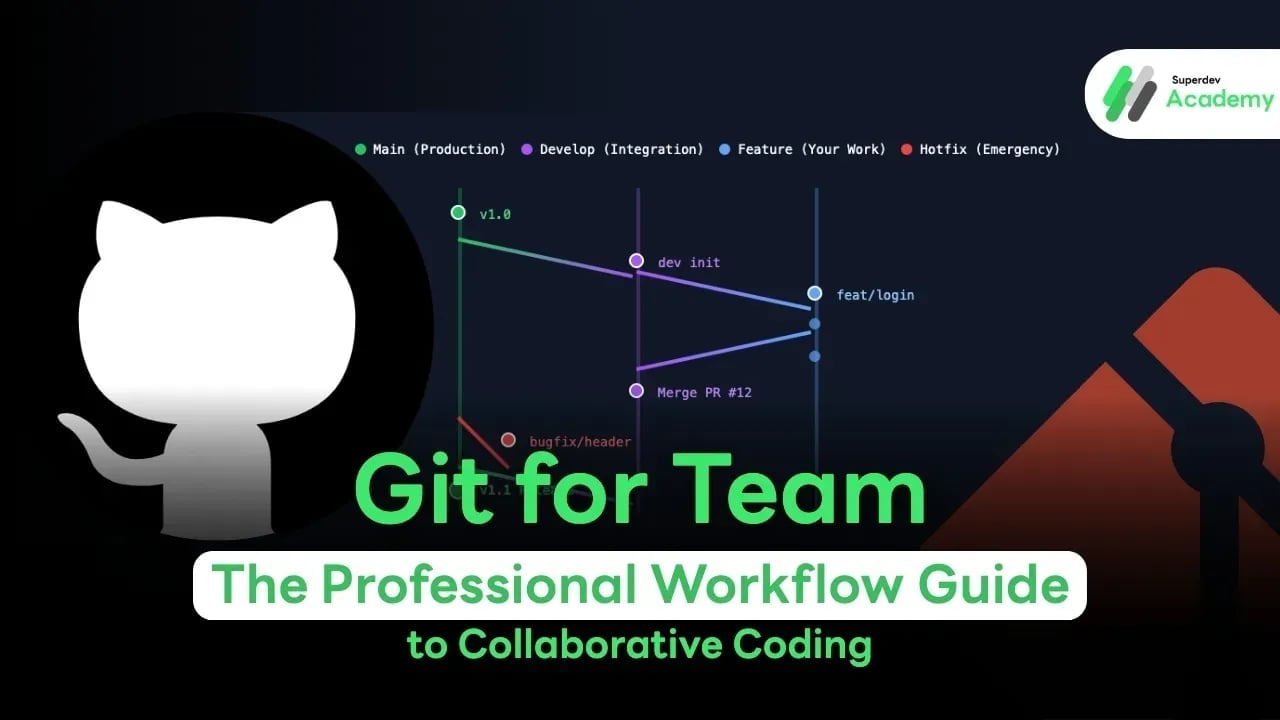
Git for Team: The Professional Workflow Guide to Collaborative Coding
#Code Review
#GitHub
#Git
#Git Workflow
Using Git alone is like keeping a personal diary it's private and only for your eyes. But when you work in a team, Git becomes the "Traffic Rules." If even one person fails to follow them, the chances of a "Code Conflict" causing a total project disaster are incredibly high.
This article summarizes team collaboration guidelines using Git and GitHub, drawn from over 10 years of experience by P'Boom from Superdev Academy, to help you become a "lovely teammate" and work seamlessly with others.
Single Source of Truth: The Heart of Mutual Trust
When multiple developers work on the same project, the scariest thing isn't "writer's block" it's when "the code on everyone's machine is different." When inconsistency strikes, no one knows which version is the most up-to-date or correct. This nightmare is solved by the principle of the Single Source of Truth (SSOT).
Local Repo vs. Remote Repo: Private Space vs. Public Space
- Local Repository (Your Machine): Think of this as your "sketchbook" or a private sandbox. You can experiment, make mistakes, edit, or delete code as much as you want without affecting anyone else. Your entire edit history is stored only on your own device.
- Remote Repository (Cloud - GitHub/GitLab): This is the "central archive" or the main distribution hub. Once you are confident in your work, you "Push" your code here to make it the official, shared version.
Why must we agree that the "Remote Server is the Ultimate Truth"?
In a team environment, we must collectively agree that the code on the Remote Server is the only standard everyone trusts.
- The Judge: If Developer A's code works but Developer B's doesn't, we don't settle the debate based on an individual machine. We look at the "Remote." If the code on Remote runs successfully, Developer B must update their local environment. If the Remote fails, that specific version is officially broken.
- Collaboration Hub: Everyone "Pulls" from the same point and "Pushes" back to the same point. This ensures the project moves forward in one unified direction.
- Backup & Disaster Recovery: Imagine if your computer breaks or is stolen. A month's worth of work could vanish in an instant. However, if you Push to the Remote regularly, your code remains safe in the Cloud. You simply find a new computer, run a clone command, and your entire workspace is restored immediately.
The "iCloud" or "Google Docs" for Programmers
To visualize this easily, a Git Remote works much like iCloud syncing photos across your iPhone, iPad, and Mac, or like Google Docs where everyone edits the same document in real-time.
However, what makes Git even more powerful is that it doesn't just store the latest version of a file it stores the "History" of everything. Who changed what, when, and why? Everything is recorded at this central "Source of Truth," allowing every team member to collaborate with 100% confidence and total trust.
Code Conflict: Prevention through "Regular Pulling"
The most headache-inducing problem in team development is the Code Conflict a situation where two programmers edit the same line of the same file, leaving Git unsure of whose version to trust.
The heart of resolving conflicts is "The Pull."
Before starting a new task or before sending your work (Push), you should habitually Pull the latest code from the main branch into your local machine. This allows you to handle any conflicts locally before they ever reach the server. Doing this frequently keeps conflicts small and much easier to manage.
Git Flow & Architecture: The Quality Gate
In enterprise-level organizations, we don’t just work on one branch. We separate our environments for safety:
- Main/Production: The branch connected to the live server used by customers. (Never break this!)
- UAT (User Acceptance Testing): The branch where customers come to inspect and accept the work.
- QA (Quality Assurance): The branch used by the testing team to "hunt" for bugs.
- Develop: The central hub where all programmers merge their work together.
- Feature/Task Branch: Personal sub-branches created for specific, individual tasks.
Why so many branches?
To create what we call a Quality Gate. Code from a developer's machine must pass through the development team (Develop), then through the QA team, and finally through the customer's approval (UAT) before reaching the real world (Production).
The Golden Rule: Protection Branches and the PR Process
Professional teams use the Protect Branch feature to lock critical branches (like Develop or Main), preventing anyone from pushing code directly. The only way to get your work in is through a Pull Request (PR).
The PR Workflow:
- Open PR: Submit a formal request to merge your code into the target branch.
- Code Review: Teammates (Peer Review) or automated systems (CI) read through your code.
- CI/CD (Automation): Systems automatically build the code, run tests, and use AI (like Gemini) to check for code quality and style (Linting).
- Merge: Once everything is approved, the Team Lead accepts the code into the central hub.
Semantic Naming: Systematic Success
Effective communication starts with naming both for your branches and your commit messages.
Branch Naming (Pattern: name/type/task)
We recommend including the developer's name and the type of work separated by a slash (/) so Git can organize them like folders:
- boom/feat/login-page (New feature)
- boom/fix/button-color (Bug fix)
Standard Commit Message Types
Code Review Etiquette
Reviewing code isn't about "finding faults to criticize"; it’s about "working together to make the code better."
- Focus on Code: Critique the logic, not the person.
- Be Polite: Use professional language. For example, "Please adjust this for better performance" sounds much better than "This is unreadable."
- Approval: If the code looks good, don't forget to encourage your teammates by hitting Approve!
Squash Merge: Keeping History Clean
When we work, we might have dozens of tiny commits like "fix typo," "try #5," or "bug again." These look very messy in the shared project history.
When merging work into the Develop branch, P'Boom recommends using Squash Merge. This combines all those tiny, messy commits into "one meaningful commit." This keeps the team's history clean, organized, and easy to read.
Conclusion: The Professional Programmer’s Checklist
- Create a Branch every time you start a new task (Never work in Main).
- Use Semantic Naming for branches and commits.
- Pull regularly to avoid major conflicts.
- Open a PR with a clear description.
- Respect the Rules of the Protection Branch.
Using Git with a team might feel overwhelming at first, but if you follow this workflow, you will become a high-quality programmer who is in high demand by any top-tier company!
What's Next: Get ready for our upcoming Workshop on using Git in the real world in the next episode! If you want to see exactly how to set up a Protection Branch, don't forget to check out P'Boom's video on the Superdev Academy YouTube channel!