14/10/2026 10:26am

Enhance Developer Workflow with Ollama: Run Local AI
#Ollama
#Local AI
#AI for Developer
#Run AI Locally
#AI Coding Assistant
#Coding Assistant
Are you using ChatGPT or Claude to write code? While they are powerful tools, many developers face these common pain points:
Privacy: You cannot risk uploading proprietary source code to the cloud.
Availability: Your workflow grinds to a halt when the internet goes down or the AI server is unavailable.
Cost: You are restricted by monthly usage quotas and subscription fees.
I recommend using Ollama. It is a tool that allows you to run AI models directly on your own computer 100% offline. It is secure, cost-free, and offers unlimited usage.
What is Ollama?
Ollama is an open-source tool that functions as a Local Model Runtime for managing and executing Large Language Models (LLMs) directly on your local machine.
It works by managing a Model Registry and running an Inference Engine as a background service, significantly reducing setup complexity. Instead of manually managing Python environments, installing dependencies, or configuring hardware acceleration, Ollama handles everything through a single command-line interface. It automatically manages model loading into memory (RAM/VRAM) and instantly deploys a local API endpoint, making the AI ready for use immediately.
Why Should Developers Use Ollama?
Data Privacy & Compliance: Source code and sensitive data are processed entirely on your local machine, never leaving your environment. This allows you to leverage AI on proprietary company data with 100% security.
Zero-Cost Infrastructure: Eliminate monthly subscription fees and per-token API costs. You can run models as much as your hardware allows, without worrying about usage limits.
Low Latency Inference: Say goodbye to network lag caused by cloud-based requests. With a capable GPU (VRAM), local inference speed is often faster and more stable than hitting external APIs.
Model Agnostic & Flexibility: You have the freedom to choose the right model for the task. Whether you need a code-specialized model like DeepSeek-Coder or Qwen2.5-Coder, you can switch between them instantly to match the specific needs of your project.
Getting Started with Ollama
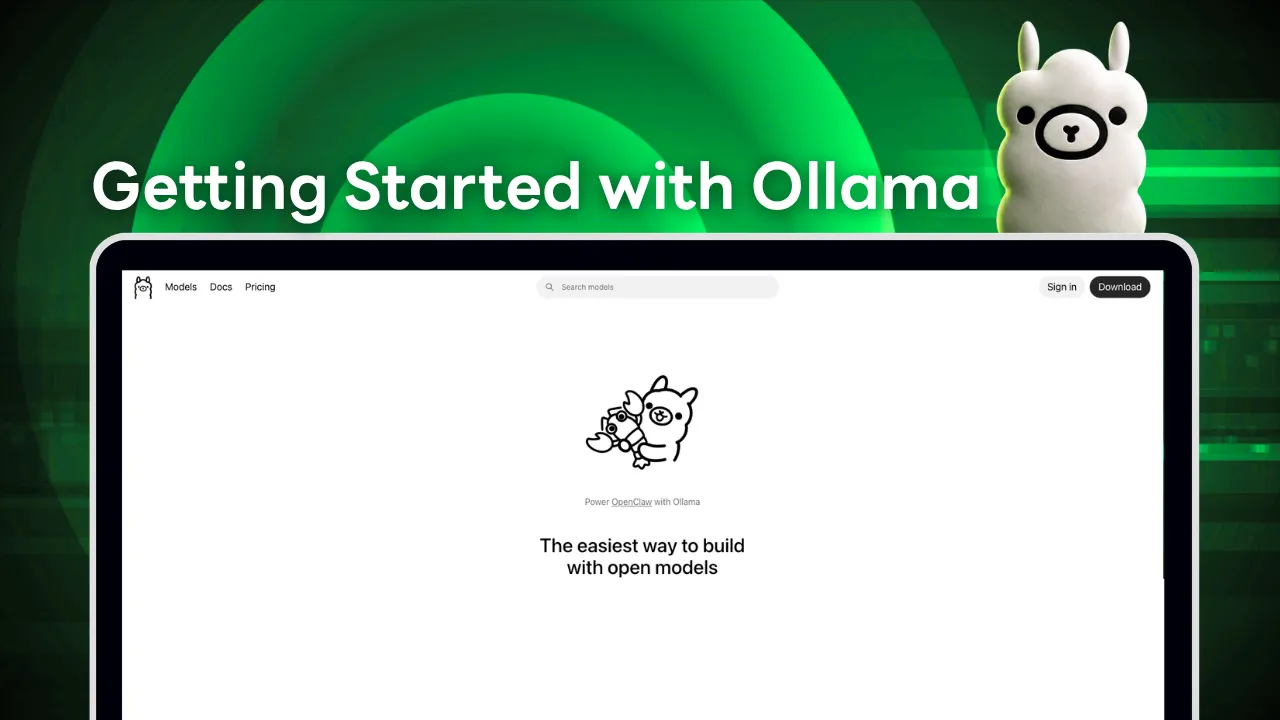
1. Installation
Download and install the application from ollama.com. It is compatible with macOS, Windows, and Linux. Once the installation is complete, open your Terminal or Command Prompt and run the following command:
Bash
ollama --version
If the version number is displayed, the installation is successful and ready to use.
2. Running Your First Model
You can execute models directly via your terminal. For coding-specific tasks, I recommend starting with deepseek-coder using this command:
Bash
ollama run deepseek-coder:6.7b
The system will download the model on your first run. Once completed, you can immediately start asking questions or requesting code generation directly within your terminal.
Technical Notes:
Model Selection: Explore a wider range of available models by visiting the Ollama Library.
Model Management: You can download multiple models and switch between them as needed. Ollama only consumes resources when a model is actively running.
Workshop: Supercharge VS Code with a Private AI Assistant
While the terminal is powerful, it isn't always the most convenient way to code. You can integrate Ollama directly into VS Code to build a local, private AI coding assistant similar to GitHub Copilot.
1. Install the Continue Extension
Open VS Code and navigate to the Extensions view (or press Ctrl+Shift+X / Cmd+Shift+X).
Search for "Continue" and click Install. (This is currently the most stable open-source extension for local AI integration.)
2. Configure the Connection
Click the Continue icon in the left-hand sidebar of VS Code.
In the settings, select "Ollama" as your Provider.
Choose the model you downloaded previously (e.g., deepseek-coder:6.7b or qwen2.5-coder).
The extension will automatically connect to the Ollama service running locally on your machine.
3. Get Started
Once configured, you can trigger the AI directly within your editor:
Ctrl+I / Cmd+I: Trigger inline prompts to write, edit, or generate new functions.
Ctrl+L / Cmd+L: Open the chat window to ask questions or explain code within your project.
Technical Tips for Your Workflow
Context Management: Continue can read your project context. Use the @ symbol to reference specific files, or highlight code directly to request refactoring.
Local Backend: Whether you are dealing with an unstable internet connection or working in an air-gapped environment, you can use AI through Continue as long as the Ollama service is running locally.
Best Practices for Optimal Performance
Running LLMs locally involves factors that significantly impact the user experience:
Hardware Requirements:
RAM/VRAM: Loading models is resource-intensive. We recommend at least 16GB of RAM for smaller models.
Acceleration: If your machine has a GPU (NVIDIA with CUDA or Apple Silicon such as the Mac mini M4), inference will be significantly faster than using a CPU. Ensure Ollama detects your GPU automatically upon startup.
Model Selection & Resource Management:
Avoid loading models that exceed your system's memory capacity (VRAM/RAM), as this will drastically degrade system performance.
For hardware-constrained setups, models in the 7B to 8B parameter range offer the best balance between performance and intelligence.
Context Window Optimization:
Local models often have more limited context windows compared to cloud-based services.
Keep your prompts concise and context-aware. Provide only the relevant code snippets to ensure the AI remains accurate and doesn't waste processing power on unnecessary data.
Conclusion
Using Ollama is more than just a cost-saving measure; it is about building your own personal AI infrastructure. It empowers developers with a workflow that is flexible, secure, and independent from reliance on cloud-based AI services.
When you can run high-performance AI directly on your machine, you can experiment with new algorithms, build prototypes, or work on proprietary projects with total peace of mind.
Start setting it up and customizing your workflow today, and you will quickly see just how powerful and effective a local AI assistant can be for your development life.
Follow Superdev Academy on all platforms:
🔵 Facebook: Superdev Academy Thailand
🎬 YouTube: Superdev Academy Channel
📸 Instagram: @superdevacademy
🎬 TikTok: @superdevacademy
FAQ: Frequently Asked Questions about This Article
A collection of questions and answers to help you better understand the content of this article.