07/06/2026 06:44am
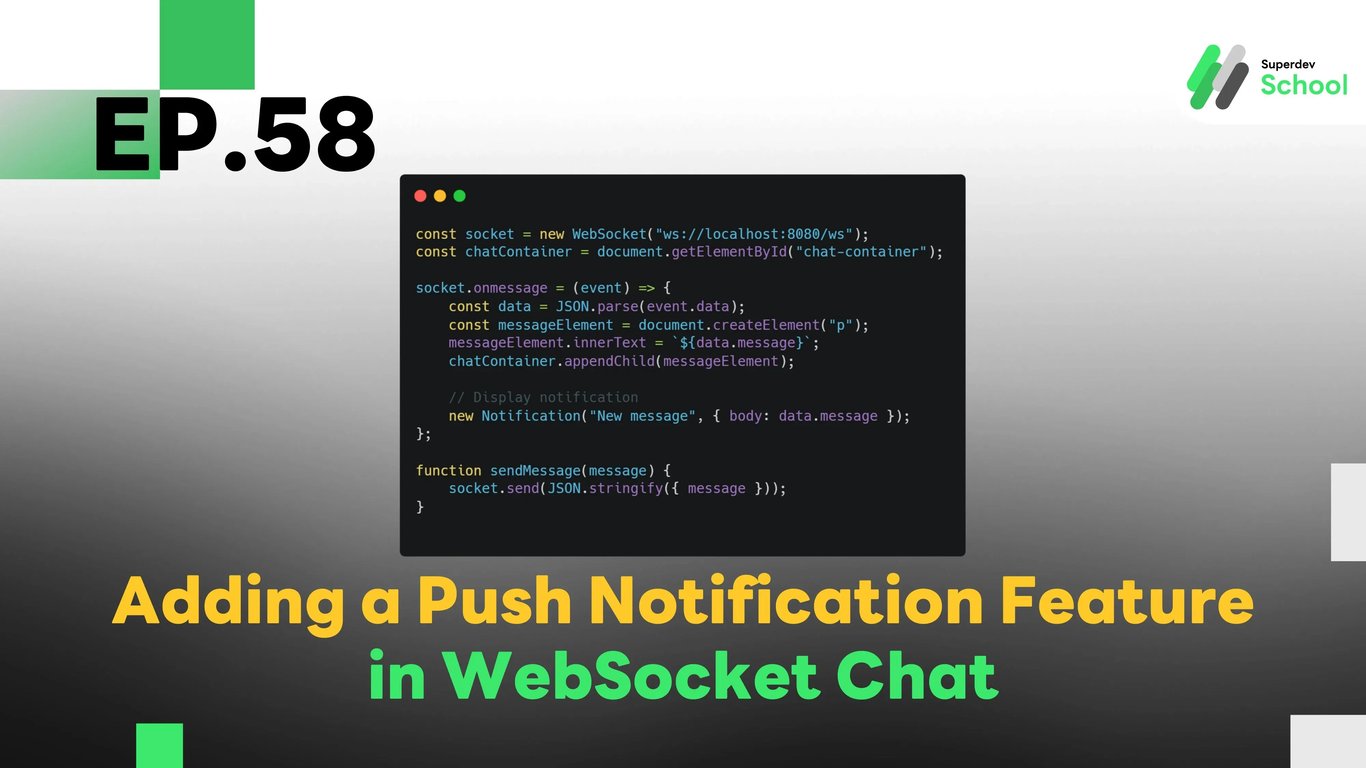
EP.58 Adding a Push Notification Feature in WebSocket Chat
#Push notification WebSocket
#real-time notifications
#WebSocket chat push notifications
#Chat App Development
#real-time alerts
#WebSocket Feature
#Go
#push notification service
The Push Notification feature in WebSocket Chat allows users to receive real-time notifications when new messages or important updates are posted in the chat room. This feature improves communication efficiency by ensuring users can respond immediately without needing to constantly check the chat.
Why is the Push Notification Feature Necessary?
The Push Notification feature is essential to ensure users never miss important updates in a chat room. Real-time notifications help users respond quickly to new messages or updates without having to manually check the chat. This feature also improves communication in chat rooms with frequent updates.
Benefits of Push Notifications:
- Never miss important information: Users receive notifications immediately when a new message is sent.
- Improved communication efficiency: Users can respond immediately without waiting for messages to be seen.
- Convenient and quick: Users don’t have to constantly monitor the chat or app.
Structure of the Push Notification System in WebSocket Chat
The Push Notification feature works alongside the WebSocket Server by sending notification data from the server to connected users in the chat room using the Push Notification API.
Key components of the push notification system:
- Setting up notifications in the WebSocket Server: The server will handle and send notifications when a new message or update occurs in the chat room.
- Using the Push Notification API: The server will send notifications to users’ devices via the Push Notification API.
- Displaying notifications in the UI: Users will be able to see the notification in the app UI.
How to Add the Push Notification Feature in the WebSocket Server
We will update the WebSocket Server to support push notifications, allowing it to send notifications when new messages or updates are posted.
Steps to implement:
- Connect the WebSocket Server with the Push Notification API: The server needs to be connected to the Push Notification API that will send notifications.
- Sending notification data: When a new message or update is posted in the chat room, the server will send a push notification to the users.
- Managing notifications: Once the notification is sent, users will receive real-time alerts.
Creating a UI for Push Notifications in WebSocket Chat
To ensure users can receive push notifications, we will add UI features to display notifications within the app. This will include popup alerts or on-screen notifications when new messages arrive.
UI components:
- Display notification popups: When a new message is posted, the system will send a notification popup to connected users.
- Display message notification in the UI: Once the notification arrives, it will show up in the UI so users can immediately respond.
- Allow users to toggle notifications: Users will be able to turn push notifications on or off in the settings.
Testing the Push Notification Feature
Testing the push notification feature is essential to ensure that users receive notifications in real-time when new messages or updates are posted.
Testing steps:
- Test sending push notifications: Verify that when a new message is posted, the system sends a push notification to users.
- Test displaying notifications in the UI: Ensure that the UI displays the push notification correctly and immediately.
- Test user interaction: Test that when a user clicks the notification, it correctly shows the message in the chat room.
Example Code for Push Notification in WebSocket Chat
Updating the WebSocket Server (Backend)
Connect to the Push Notification API and send notifications.
package main

import (
    "database/sql"
    "encoding/json"
    "fmt"
    "net/http"
    "sync"

    "github.com/gorilla/websocket"
    _ "github.com/lib/pq"
)

type PushNotificationRequest struct {
    Message string `json:"message"`
    UserID  string `json:"user_id"`
}

var (
    clients   = make(map[*websocket.Conn]bool)
    broadcast = make(chan PushNotificationRequest)
    mu        sync.Mutex
    db        *sql.DB
)

func sendPushNotification(message string, userID string) {
    // Call your Push Notification API to send notifications
    fmt.Printf("Sending push notification to %s: %s\n", userID, message)
}

func handleChat(w http.ResponseWriter, r *http.Request) {
    conn, _ := upgrader.Upgrade(w, r, nil)
    defer conn.Close()
    clients[conn] = true

    for {
        var message PushNotificationRequest
        err := conn.ReadJSON(&message)
        if err != nil {
            delete(clients, conn)
            break
        }

        // Send push notification
        sendPushNotification(message.Message, message.UserID)

        broadcast <- message
    }
}

func notifyClients() {
    for {
        msg := <-broadcast
        for client := range clients {
            err := client.WriteJSON(msg)
            if err != nil {
                client.Close()
                delete(clients, client)
            }
        }
    }
}

func main() {
    http.HandleFunc("/ws", handleChat)
    go notifyClients()
    fmt.Println("WebSocket Server Running on Port 8080")
    http.ListenAndServe(":8080", nil)
}
Frontend Code (Client)
Add notification handling and display in the UI.
const socket = new WebSocket("ws://localhost:8080/ws");
const chatContainer = document.getElementById("chat-container");

socket.onmessage = (event) => {
    const data = JSON.parse(event.data);
    const messageElement = document.createElement("p");
    messageElement.innerText = `${data.message}`;
    chatContainer.appendChild(messageElement);

    // Display notification
    new Notification("New message", { body: data.message });
};

function sendMessage(message) {
    socket.send(JSON.stringify({ message }));
}
Challenge for Next EP!
Try adding message filtering so users can search chat history more easily and find important messages!
Next EP:
In the next episode, we will explore making the WebSocket Server scalable (Scalability) using Redis to improve performance and handle large numbers of connections efficiently!