View : 320
07/06/2026 06:44am
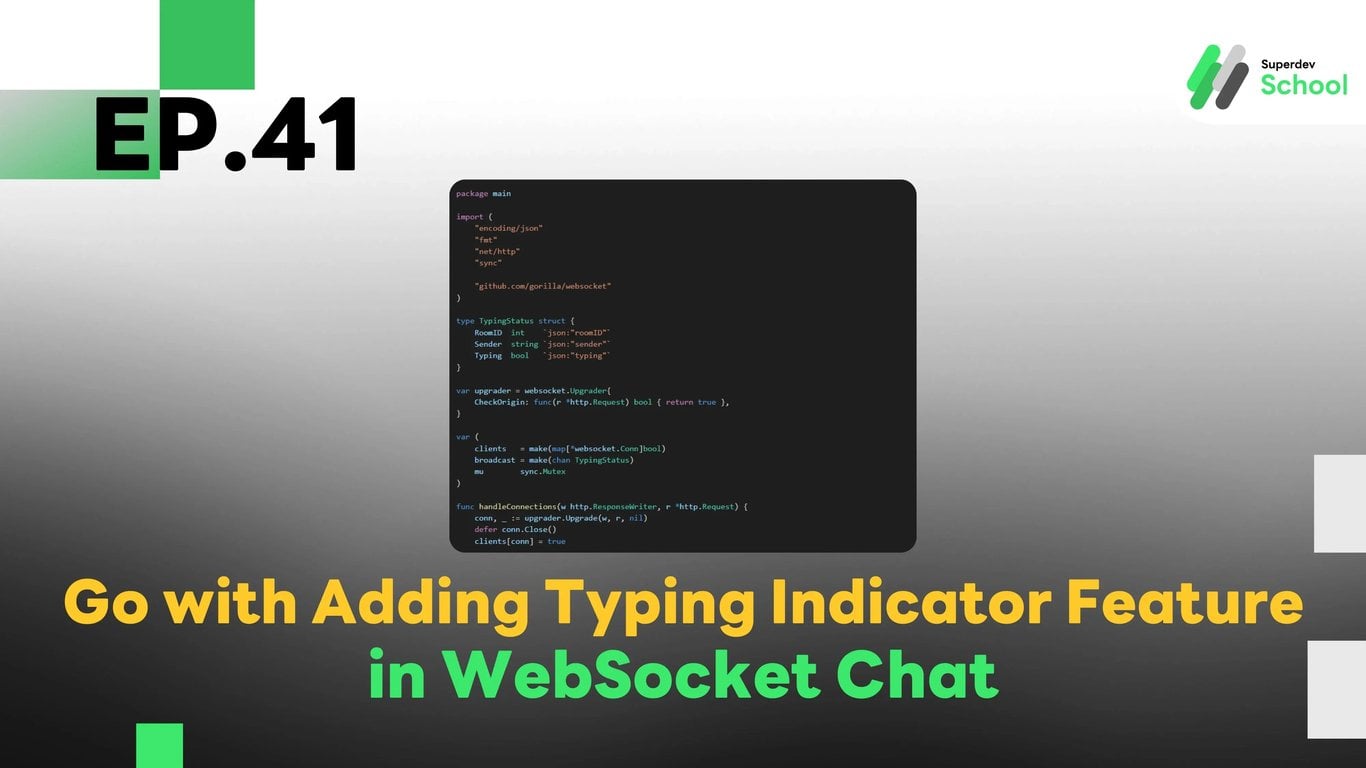
EP.41 Adding Typing Indicator Feature in WebSocket Chat
#Chat UX
#Typing Status
#WebSocket API
#WebSocket Chat
#Real-Time Chat
#Golang
#Go
#WebSocket
#Typing Indicator
Why Have a Typing Indicator in WebSocket Chat?
The Typing Indicator allows users to know when their conversation partners are typing, enhancing the fluidity of communication and improving user responsiveness. This feature is ideal for:
- Personal and Group Chat Applications: Such as WhatsApp or Messenger.
- Customer Support Chats: Where agents can inform customers that they are responding.
- Community Platforms and Social Media: Aiming for a more immersive user experience.
Structure of the Typing Indicator System in WebSocket Chat
- WebSocket Server: Receives and distributes typing status to users in the same chat room.
- Frontend (Client-Side): Sends and receives typing status, displaying it in the UI.
- Database (Optional): Can store typing logs for analyzing user behavior if needed.
Adding the Typing Indicator Feature to the WebSocket Server
1. Upgrade the WebSocket Server to Support Typing Indicator
File: websocket_server.go
package main

import (
    "encoding/json"
    "fmt"
    "net/http"
    "sync"

    "github.com/gorilla/websocket"
)

type TypingStatus struct {
    RoomID  int    `json:"roomID"`
    Sender  string `json:"sender"`
    Typing  bool   `json:"typing"`
}

var upgrader = websocket.Upgrader{
    CheckOrigin: func(r *http.Request) bool { return true },
}

var (
    clients   = make(map[*websocket.Conn]bool)
    broadcast = make(chan TypingStatus)
    mu        sync.Mutex
)

func handleConnections(w http.ResponseWriter, r *http.Request) {
    conn, _ := upgrader.Upgrade(w, r, nil)
    defer conn.Close()
    clients[conn] = true

    for {
        var status TypingStatus
        err := conn.ReadJSON(&status)
        if err != nil {
            delete(clients, conn)
            break
        }
        broadcast <- status
    }
}

func handleMessages() {
    for {
        status := <-broadcast
        fmt.Printf("User %s is typing: %v\n", status.Sender, status.Typing)
        for client := range clients {
            err := client.WriteJSON(status)
            if err != nil {
                client.Close()
                delete(clients, client)
            }
        }
    }
}

func main() {
    http.HandleFunc("/ws", handleConnections)
    go handleMessages()
    fmt.Println("WebSocket Server Running on Port 8080")
    http.ListenAndServe(":8080", nil)
}
2. Adding Typing Indicator Functionality in the Frontend (Client-Side)
File: client.js
const socket = new WebSocket("ws://localhost:8080/ws");
const typingIndicator = document.getElementById("typing-indicator");
let typingTimeout;

socket.onmessage = (event) => {
    const data = JSON.parse(event.data);
    if (data.typing) {
        typingIndicator.innerText = `${data.sender} is typing...`;
    } else {
        typingIndicator.innerText = "";
    }
};

function sendTypingStatus(isTyping) {
    socket.send(JSON.stringify({ roomID: 1, sender: "JohnDoe", typing: isTyping }));
}

document.getElementById("message-input").addEventListener("input", () => {
    sendTypingStatus(true);
    clearTimeout(typingTimeout);
    typingTimeout = setTimeout(() => sendTypingStatus(false), 3000);
});
Displaying Typing Indicator on the UI
File: index.html
<input type="text" id="message-input" placeholder="Type a message...">
<p id="typing-indicator"></p>
3. Testing the System
Running the WebSocket Server
go run websocket_server.go- Open Multiple Browser Tabs and Type Messages
- Observe the Results
Challenge!
Try adding a Stop Typing Indicator feature that detects when a user has stopped typing after a certain period. This will enhance the user experience by removing the Typing Indicator when no action is detected.
Next EP
In EP.42, we will add a Read Receipts feature in the WebSocket Chat to notify users when messages have been read! 🚀